
What Payers See
The Payer Portal is a separate, mobile-friendly area for parents and other Payers.
Sign in
Section titled “Sign in”- The Payer opens the Payer sign-in page.
- They enter the email address held by the Club.
- If shown, they complete the ordinary security check.
- They select Send code.
- They enter the one-time verification code sent by email.
- If the same email is a Payer for more than one Club, they choose the Club.
The response does not reveal whether an email is registered. If a code does not arrive, the Club should first confirm that the Payer’s email is correct.
Payer Portal access is passwordless. Payers request a new one-time code when signing in and do not need to reset a password.

Portal navigation
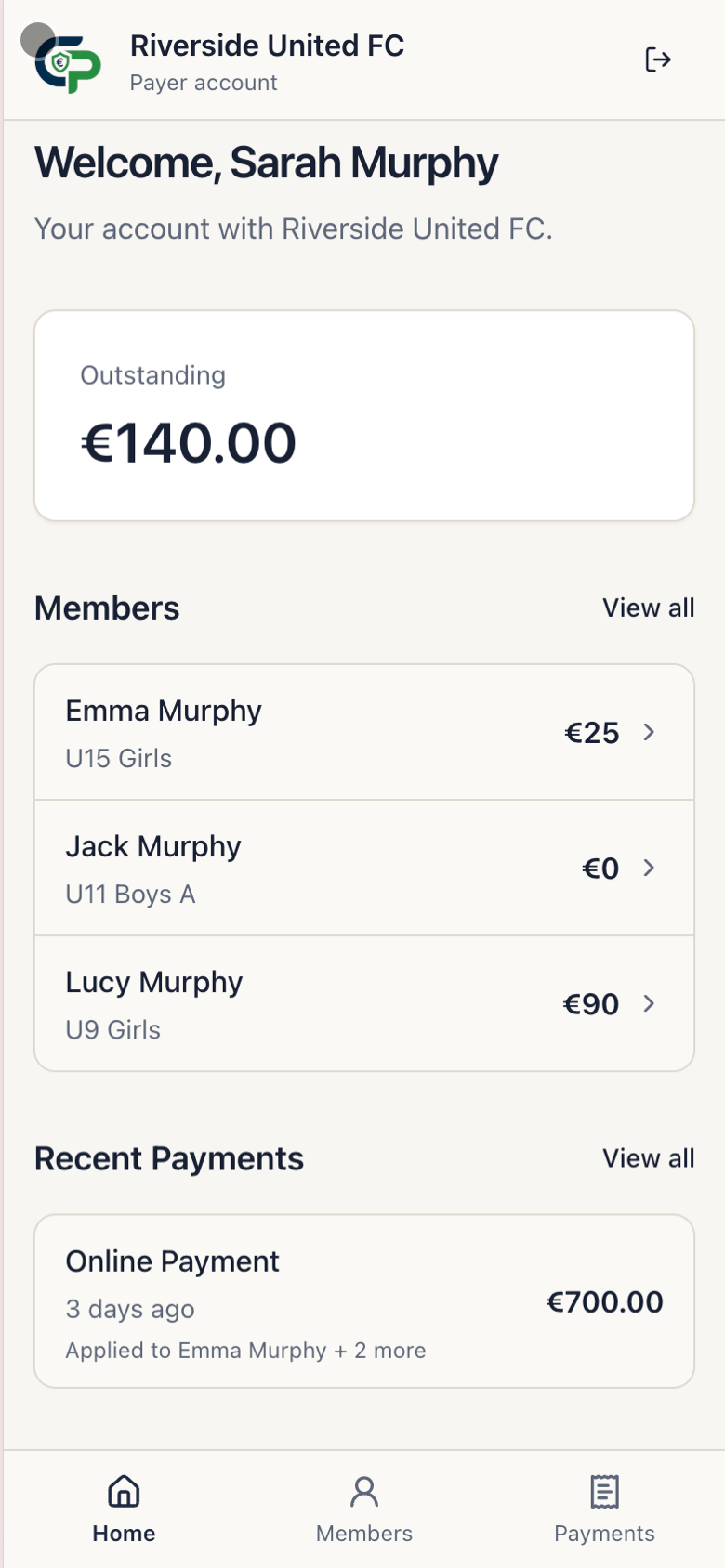
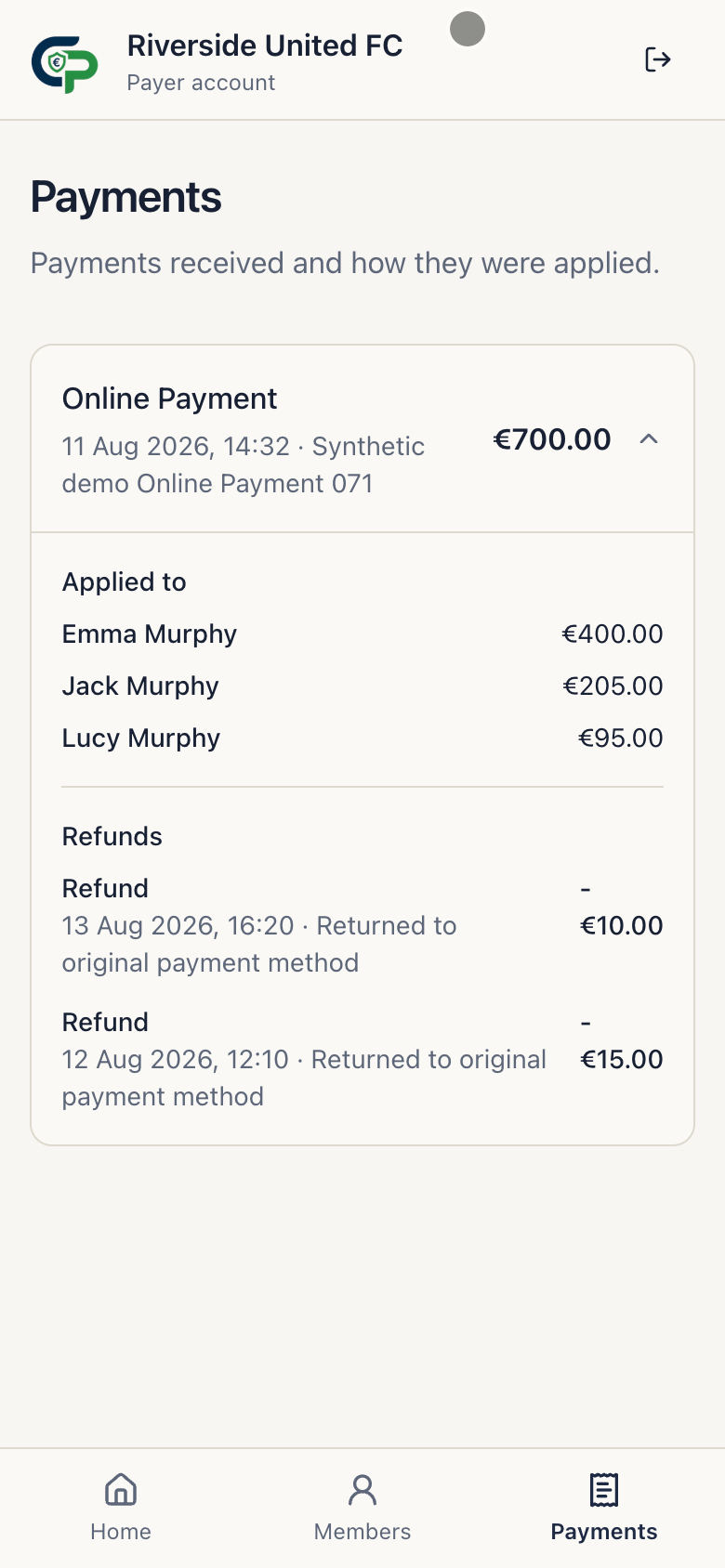
Section titled “Portal navigation”The Payer navigation contains Home, Members, and Payments.
- Home shows Outstanding, Account Credit when present, linked Members, Recent Payments, and Account Adjustments.
- Members shows currently linked Members. Opening one shows Total Charges, Member Adjustments, Paid, Outstanding, and read-only Financial History.
- Payments shows Payment method, date, amount, how it was applied, and confirmed Refunds.
Online Payments
Section titled “Online Payments”When the Club’s Stripe connection is ready and a balance is due, Home shows Pay in full and Pay another amount. Stripe opens secure hosted Checkout. The Payer does not choose how the Payment is divided between Members.
If the Club has enabled the optional Advanced Online Payments feature, an eligible Payer may also see a Payment Plan offer. The Portal shows its instalment schedule and provides the Payer-only recovery steps if a future instalment is marked Action Required.
Use Logout to end the Payer session.
An Administrator who is also a Payer uses this sign-in separately from Club administration. Disabling their Administrator access does not remove valid Payer access.