
Members
Members belong to the Club’s central Member list. Open Members to search by name and filter by Member Type, Status, and Gender. The list also shows current Teams and Issues requiring attention.
An Issue identifies missing information that should be reviewed. It does not create a separate Member status. Active Members with Issues can still take part in normal Club work.
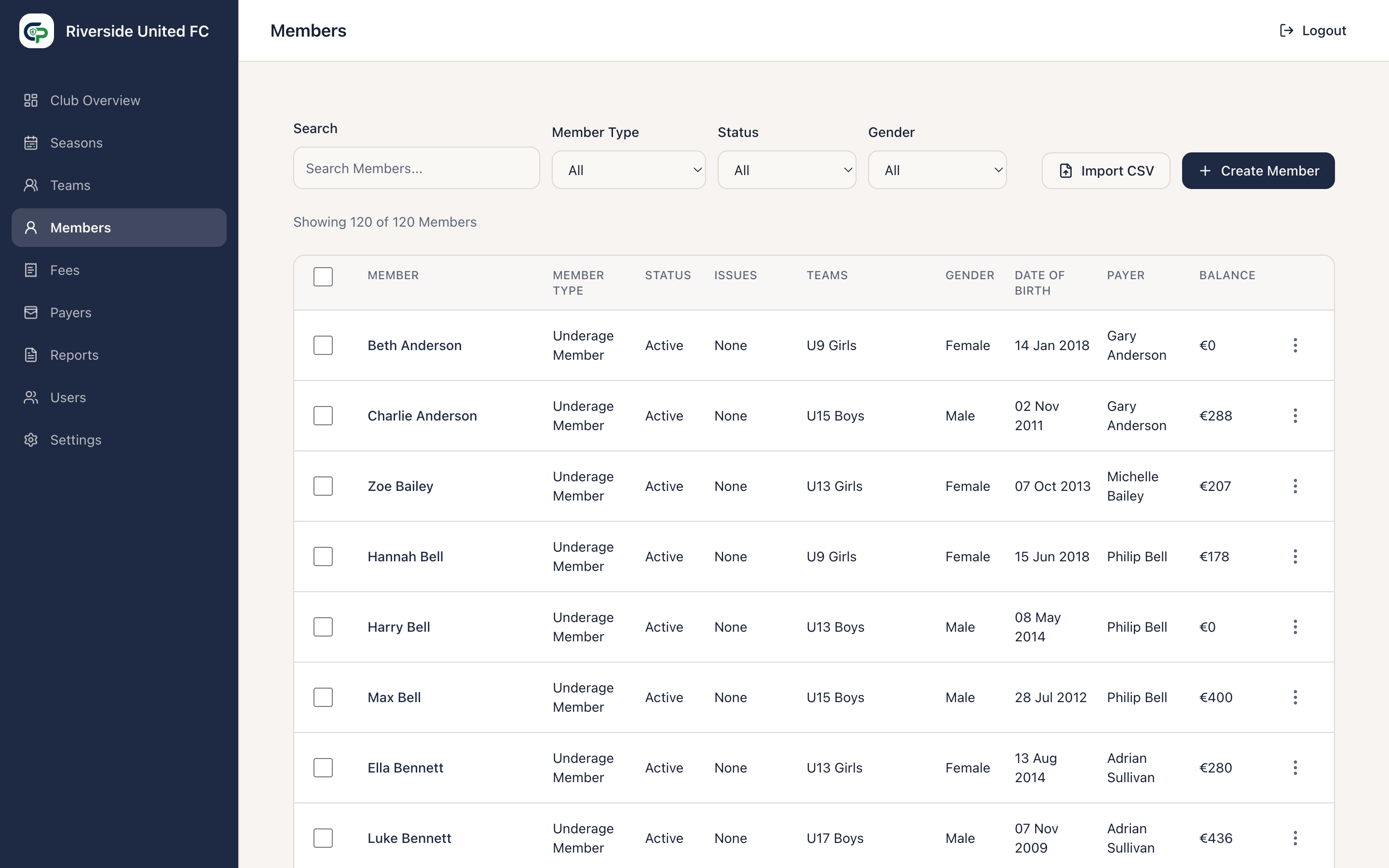
Add a Member manually
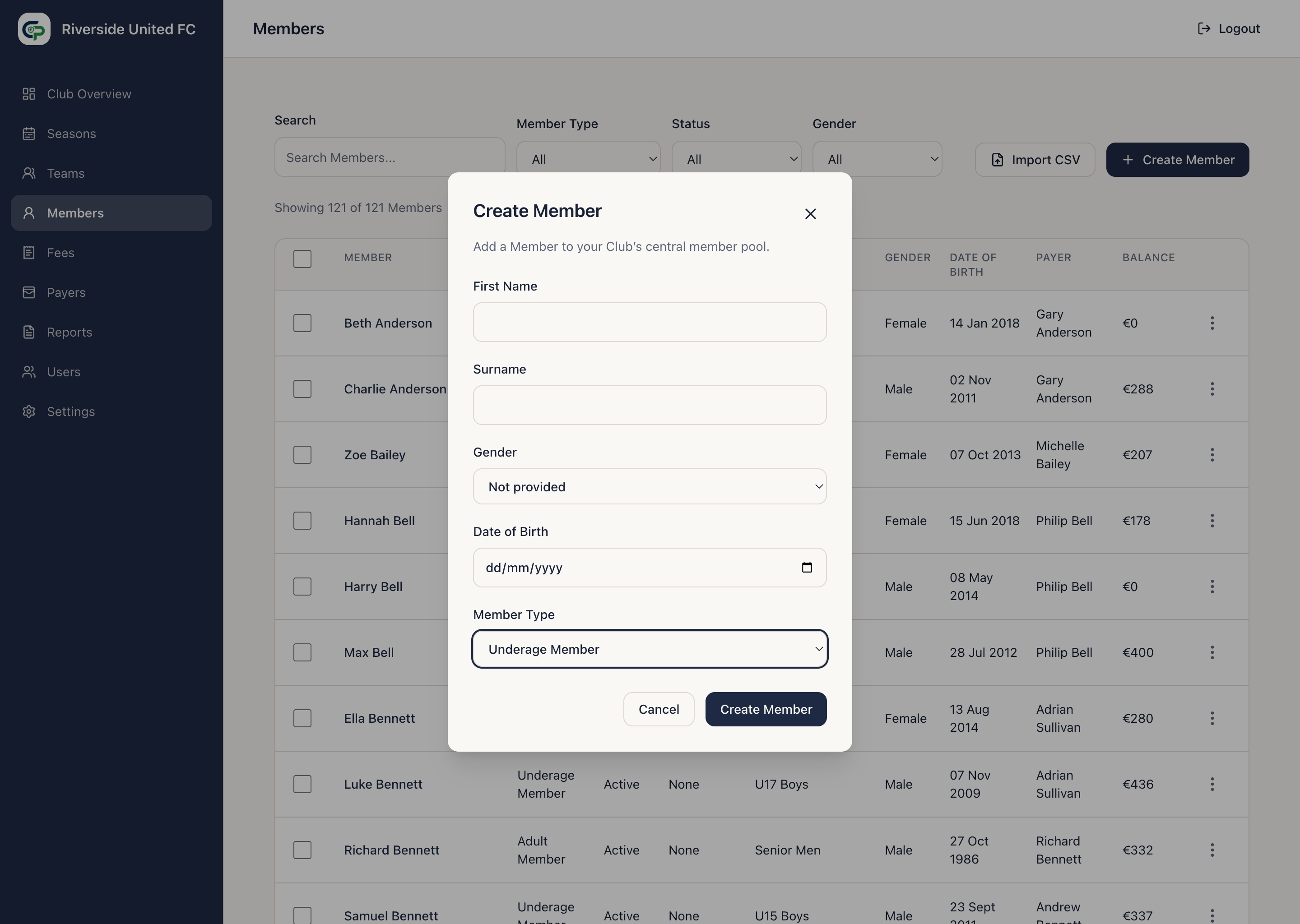
Section titled “Add a Member manually”- Select Create Member.
- Enter the Member’s first name and surname.
- Add available details, including Date of Birth and Gender.
- Choose Underage or Adult for Member Type.
- Select Create Member.
For an Adult Member, ClubPayee makes that person responsible for their own account.
For an Underage Member, continue by choosing one option:
- Assign Existing Payer — choose this for a sibling or an existing family account;
- Create New Payer — use this when the responsible person is not already in ClubPayee; or
- Finish Later — leave a visible No Payer Issue to resolve later.
Selecting an Administrator as the Payer does not change or remove their Administrator access.
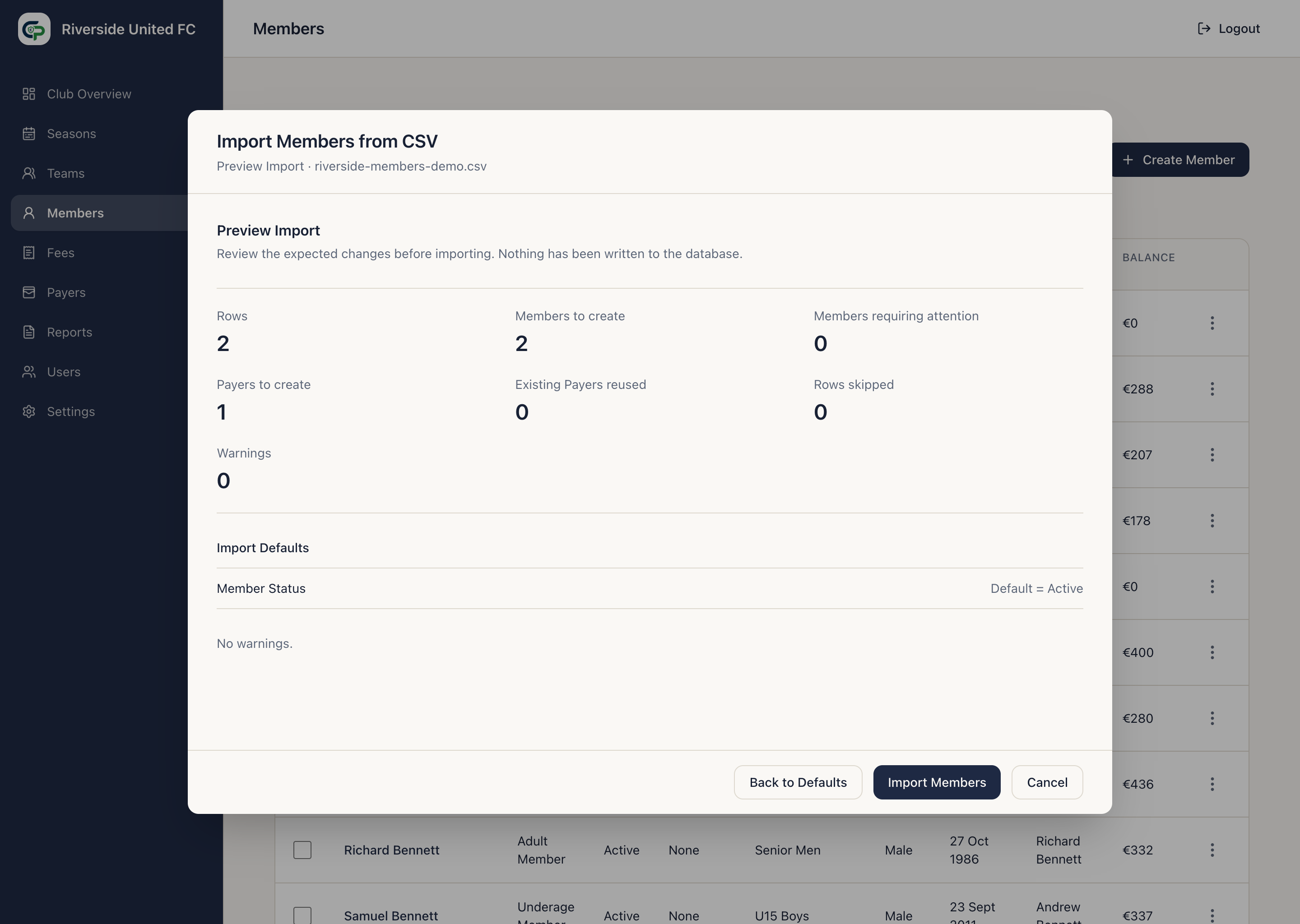
Import Members from CSV or Excel
Section titled “Import Members from CSV or Excel”Select Import CSV or Excel. ClubPayee supports .csv and modern Excel
.xlsx files through the same mapping and preview workflow:
- Upload CSV or Excel (.xlsx) — choose the file.
- Choose a worksheet — shown only when an Excel workbook has multiple non-empty worksheets. Choose one; worksheets are never combined.
- Map Columns — match each column to a Member or Payer field, or choose Ignore.
- Import Defaults — choose values for rows where fields are not mapped.
- Preview Import — review valid rows, warnings, and errors. Preview creates nothing.
- Confirm the import and review the completion summary.
For Excel files, the first populated row supplies the column headings and fully
empty worksheets and rows are ignored. The workbook is read in your browser and
is not uploaded for conversion. Only first name and surname are required for a
row to create a Member. Missing details may appear as Issues. Dates may use an
Excel date cell, YYYY-MM-DD, DD/MM/YYYY, or DD-MM-YYYY. A saved mapping
profile can be reused for later files with the same layout. Files are limited to
5 MB, 5,000 data rows, and 100 columns. Legacy .xls and password-protected
workbooks are not supported.
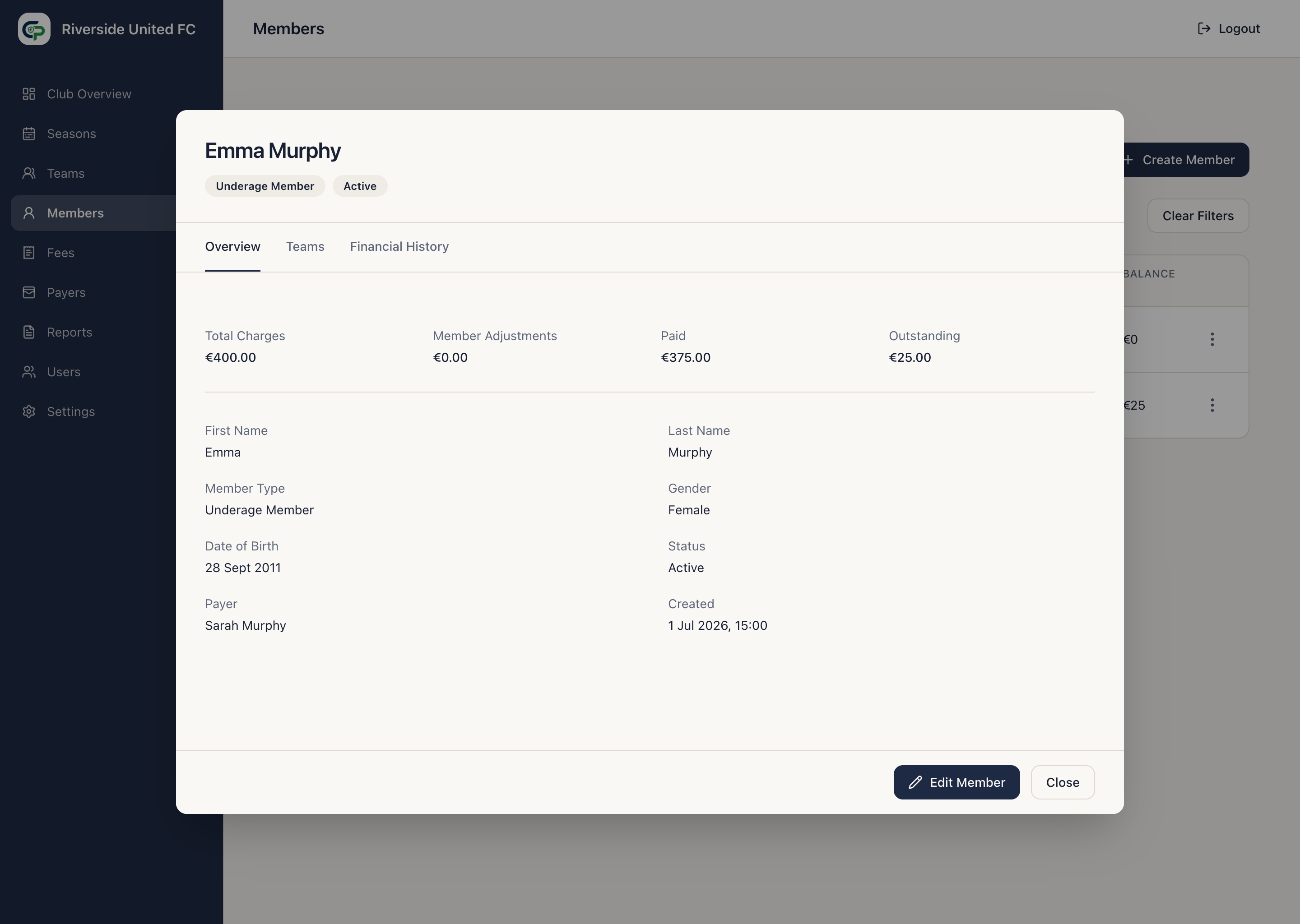
Edit details and status
Section titled “Edit details and status”Open a Member and choose Edit from the actions menu. Update available personal details, Member Type, or Active/Inactive status.
Inactive Members keep their Teams, balances, and history, but cannot receive new Team assignments or new operational Team Fee entries. Existing outstanding amounts remain payable.
Member workspace
Section titled “Member workspace”Select a Member to open:
- Overview — details, Issues, and financial summary;
- Teams — current and historical Team memberships; and
- Financial History — the chronological Fees and changes making up the balance.
The Teams tab identifies the Registration Team for each Season. Use Add to Team for another squad. An eligible secondary Team shows Make Registration Team in its row. Confirming the action changes only that Season. After financial activity starts, the action is disabled to protect the Member’s payment history.
Import does not assign a Team. A CSV/XLSX import therefore creates no Registration Team, Team Fee, notification, Payment Plan obligation, or Member credit usage. Assign the imported Member to Teams afterward.
The financial summary shows Total Charges, Member Adjustments, Paid, and Outstanding.
Assign a missing Payer
Section titled “Assign a missing Payer”If the Member has no Payer, select Assign Payer in Overview. Search for an existing Payer or Administrator, or create a new Payer.
The current application does not replace a Payer who is already assigned. Email ClubPayee Support at support@clubpayee.com if existing responsibility is wrong; do not create duplicate people to work around it.
Add a Member Adjustment
Section titled “Add a Member Adjustment”- Open Financial History.
- Find the Fee or charge to change.
- Select Add Adjustment.
- Choose Reduce Amount or Add Amount.
- Enter the amount and a clear reason.
- Select Add Adjustment.
If an Adjustment was entered incorrectly, use Reverse Adjustment. ClubPayee adds a correcting entry and keeps the original action visible.